The Patient Merge tool allows administrators and managers to consolidate duplicate patient records into a single record. When two records exist for the same patient — for example, one created in CareDesk and another imported from an EMR — this tool moves all associated data (encounters, notes, and other records) from the duplicate into the target record.
Access Requirements
Patient Merge is available to users with the Admin or Manager role. The feature must also be enabled for your organization — if you don't see "Patient Merge" in the Admin menu, contact your system administrator to enable it.
Menu location:
Admin left menu → Patient Merge (under the patient management section)
How Patient Merge Works
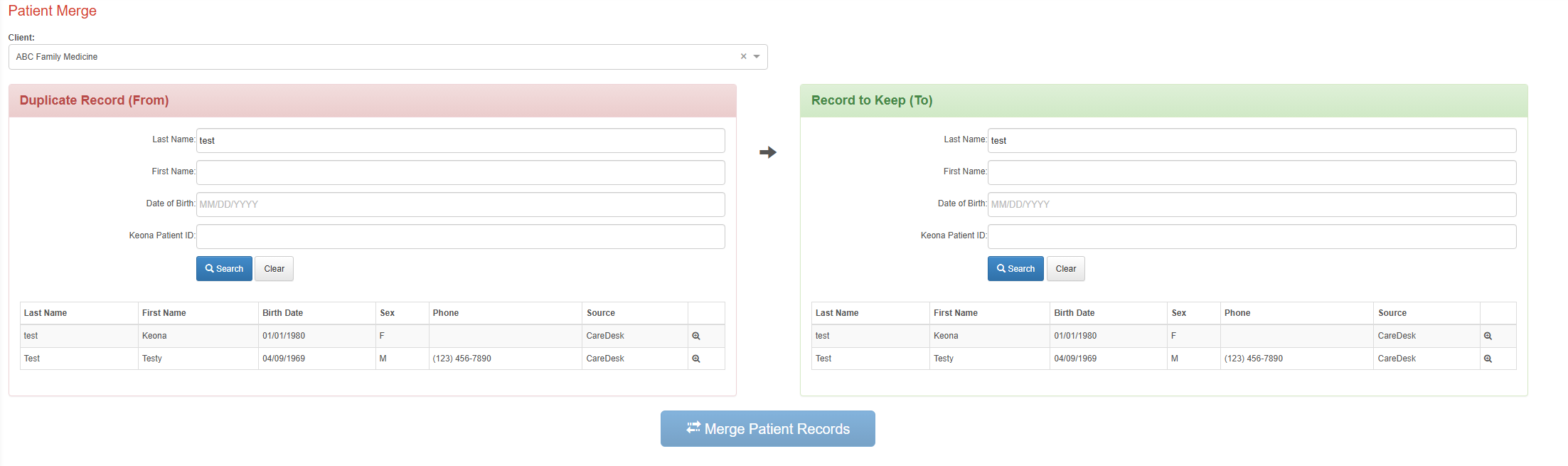
The Patient Merge page presents two side-by-side panels. The left panel, "Duplicate Record (From)", is where you select the record you want to remove. The right panel, "Record to Keep (To)", is where you select the record that will remain after the merge. All data from the duplicate is moved into the target record, and the duplicate is deactivated.
Step-by-Step: Merging Patient Records
1. Select a Client (If Applicable)
If your organization manages patients across multiple clients or practices, a Client dropdown appears at the top of the page. Selecting a client scopes both search panels to show only patients associated with that client. When you change the selected client, both panels are cleared and you'll need to search again. If your organization does not use multi-client configuration, you won't see this dropdown.
2. Search for the Duplicate Record
In the left panel ("Duplicate Record - From"), search for the patient record you want to remove. You can search by any combination of:
| Field | Description |
|---|---|
| Last Name | Patient's last name (partial matches supported) |
| First Name | Patient's first name (partial matches supported) |
| Date of Birth | Patient's date of birth in MM/DD/YYYY format |
| Keona Patient ID | The patient's CareDesk Person ID — use this for a direct lookup when you know the exact ID |
Click Search to display results. The results table shows matching patients with their last name, first name, birth date, sex, phone number, and source (CareDesk, External, or Both).
To view more details about a patient before selecting them, hover over the magnifying glass icon on the right side of any result row. A tooltip appears showing the patient's full information including CareDesk ID, EMR/PM record IDs, MRN, address, email, and phone numbers.
Click a patient row to select it as the duplicate record.
3. Search for the Target Record
In the right panel ("Record to Keep - To"), search for the patient record you want to keep. Use the same search fields and process as the left panel.
Click a patient row to select it as the target record.
4. Review Both Selections
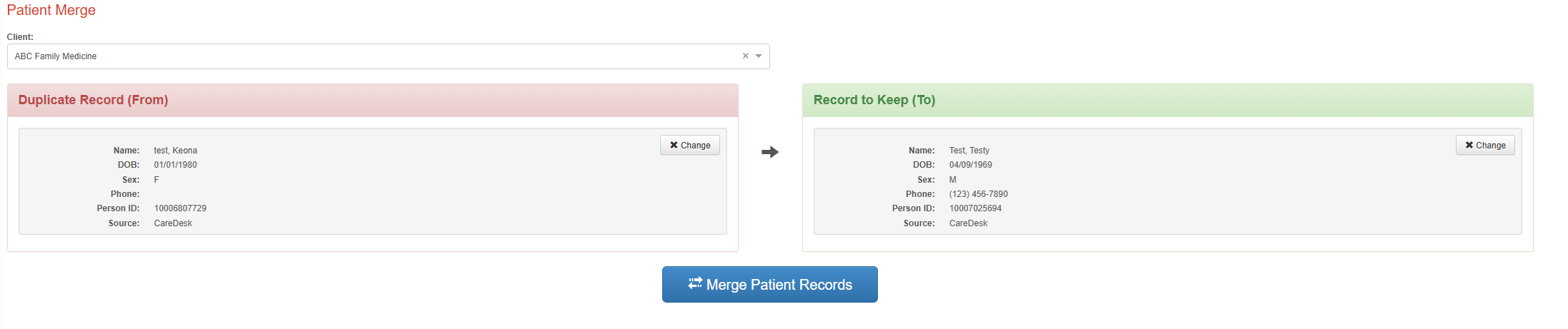
After selecting a patient on each side, both panels display a summary card showing the patient's name, date of birth, sex, phone number, Person ID, and source. Review these carefully to make sure you have the correct records.
If you selected the wrong patient, click the Change button on either card to go back and search again.
5. Merge the Records
Click the Merge Patient Records button at the bottom of the page. A confirmation dialog appears showing both patient records and asking you to confirm the merge.
Click Confirm Merge to proceed. On success, a confirmation message is displayed and the left panel resets so you can perform additional merges if needed.
Important Rules and Restrictions
The duplicate record must exist in CareDesk.
The "From" record must have a CareDesk Person ID. If you select an external-only record (one that exists only in the EMR/PM system and hasn't been created in CareDesk), a warning message appears and the merge button is disabled.
The target record does not need to exist in CareDesk yet.
If the "To" record is external-only, the system automatically creates a CareDesk person record for it before executing the merge.
You cannot merge a patient into itself.
If both panels have the same patient selected, the system will display an error.
All merges are audited.
Every merge is logged with the duplicate and target Person IDs, along with the name of the administrator who performed it. This audit trail is available for compliance and review purposes.
What Happens During a Merge
When you confirm a merge, the system:
- Reassigns all associated data from the duplicate record to the target record — this includes encounters, clinical notes, and all other records linked to the duplicate's Person ID
- Deactivates the duplicate record — the record is soft-deactivated, meaning it no longer appears in patient searches or is available for new encounters, but the historical record is preserved in the database for audit purposes
- Logs the merge action to the admin activity log, recording the duplicate Person ID, target Person ID, and the administrator who performed the merge
The target record retains all of its original data plus everything that was moved from the duplicate. Staff who previously worked with the duplicate will now see those encounters and notes under the target record.
Troubleshooting
"Patient Merge" is not visible in the Admin menu.
The feature must be enabled for your organization. Contact your system administrator to enable the Patient Merge feature flag.
The Merge button is disabled.
This happens when one of the required conditions isn't met. Make sure both panels have a patient selected and that the "From" record has a CareDesk Person ID (is not external-only).
A warning says the duplicate record is not in CareDesk.
The "From" record must have a CareDesk Person ID to be merged. If the record exists only in your EMR/PM system, it cannot be used as the duplicate. Try swapping the records — use the external-only record as the "To" (target) instead, since the system can create a CareDesk record for the target automatically.
"Cannot merge a patient record into itself."
You've selected the same patient on both sides. Click Change on one of the panels and select a different record.
Search returns no results.
Verify your search criteria. Try searching by a single field (such as last name only) to broaden the results. If your organization uses client filtering, make sure the correct client is selected in the dropdown at the top of the page.
The merge completed but I need to undo it.
Patient merges are irreversible and cannot be reversed.
Key Terms
| Term | Definition |
|---|---|
| Person ID | The unique identifier for a patient record in CareDesk. Displayed in search result tooltips and on the selected patient card. |
| Source | Indicates where a patient record originated — "CareDesk" (created in the platform), "External" (imported from an EMR/PM system), or "Both" (exists in both). |
| EMR/PM Record ID | Identifiers from external electronic medical record or practice management systems linked to a patient. |
| MRN | Medical Record Number — an identifier assigned by the healthcare facility. |
| Deactivated | A merged duplicate record is soft-deactivated: it no longer appears in searches or is available for new encounters, but historical data is preserved for audit purposes. |
Was this article helpful?
That’s Great!
Thank you for your feedback
Sorry! We couldn't be helpful
Thank you for your feedback
Feedback sent
We appreciate your effort and will try to fix the article